

Appearance
Split View
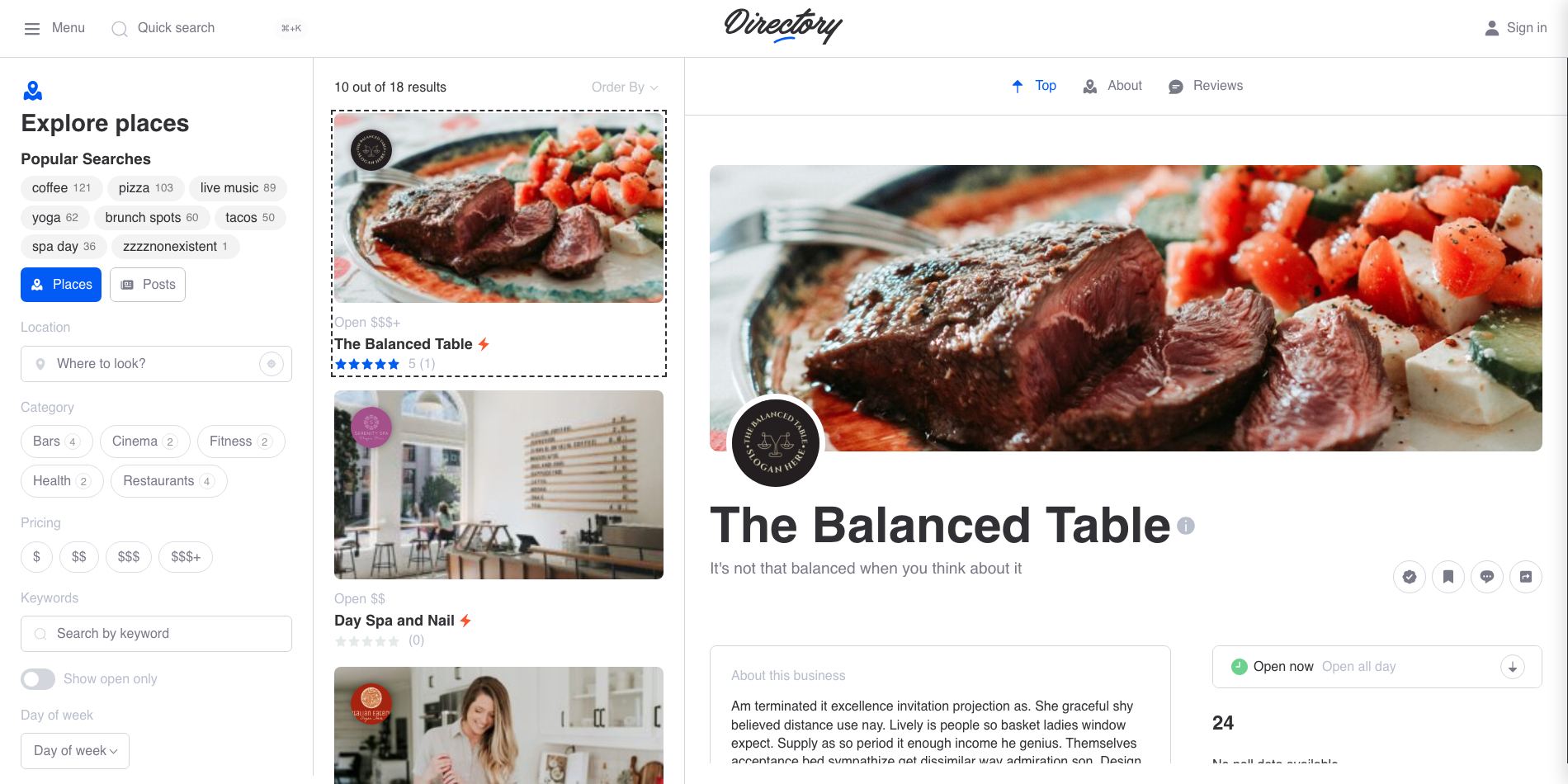
The Split View (VT) widget links to a Voxel post feed and previews any clicked result in a side pane, without leaving the search page — the browsing pattern Indeed and similar job boards use.
Overview
Instead of every card click opening a new page, the full listing renders in a pane next to the results. Visitors move through results quickly, the feed keeps its filters and scroll position, and each preview still counts as a visit in Voxel's own statistics.
Key Features
- Click a feed card to load the full listing in a side pane
- Works with a linked Map (VX) widget too — clicking a marker previews that post
- Template override per post type for lighter pane layouts
- Optional auto-select of the first result
- Shareable
?vt-preview=123URLs with back/forward support - Selected card styling (outline, background, shadow)
- Slide-in drawer on small screens
Setup Instructions
Step 1: Enable the Widget
- Navigate to Voxel Toolkit → Widgets in your WordPress admin
- Find Split View in the list
- Toggle the switch to enable it
Step 2: Add and Link the Widget
- Edit your search page in Elementor
- Add the Split View (VT) widget next to your Post Feed (VX) widget — typically in a two-column layout with the feed on the left
- In the widget's Connections section, use Link to post feed to pair it with the feed on the page (the same relation control Voxel uses to pair a search form with a feed)
- Optionally use Link to map to also preview posts when their map markers are clicked
The pairing also appears from the other side: Voxel's Post Feed and Map widgets gain a Connect to Split View widget (VT) control.
Editor preview is a placeholder
In the Elementor editor the widget shows a static placeholder. Click behaviour only works on the live page, after applying changes.
Settings
Templates
By default each post type previews using its single template. Add rows to the Template Overrides repeater to use a different template per post type — useful when the full single page is too heavy for a side pane. Each row has a Post Type and a Template select listing that type's custom single-post templates.
Behavior
| Setting | Default | What it does |
|---|---|---|
| Auto-select First Result | Off | Previews the first result as soon as the feed loads. Skipped in drawer mode |
| Track Selection in URL | On | Adds ?vt-preview=123 to the address bar so a selection can be shared; back/forward move between selections |
| Drawer Below (px) | 1024 | Below this viewport width the preview opens as a slide-in drawer instead of a side pane. Set 0 to always use the pane |
| Empty State Text | "Select a result to preview it here." | Shown until something is clicked |
Loading
While a listing loads, the pane shows a loader (Style tab → Loading):
| Control | Default | Notes |
|---|---|---|
| Loader | Skeleton | Skeleton, Spinner, or None |
| Skeleton / Shimmer Color | theme grays | Skeleton mode |
| Spinner Color | brand navy | Spinner mode |
| Loader on Every Change | On | Off keeps the previous listing visible, dimmed, while the next loads |
Style
- Pane – max height (defaults to 90vh), sticky top offset (the pane sticks while results scroll; account for a fixed header), background, border, radius, padding
- Selected Card – outline style/width/colour/offset, border radius, background and box shadow applied to the currently previewed card in the feed. An outline is used rather than a border, so selection never shifts the grid
How It Works
- Clicks are handled on
.ts-previewcards; buttons, links with modifier keys, and action elements inside a card keep their normal behaviour - The preview is rendered server-side from the template chosen in your settings — visibility rules on both the post and the template are re-checked, and the browser cannot request an arbitrary template
- Previews are cached per post for the page load, and if you click quickly the last click wins
- On mobile, the drawer slides in over the page with a backdrop; close it with the close button, the backdrop, or Escape
SEO and Tracking
- The
previewparameter is stripped from canonical URLs (WordPress core, Yoast, Rank Math, AIOSEO and SEOPress are all covered), so shared preview links never create duplicate-content canonicals - Each preview is reported to Voxel's visit tracking, so previews count in Voxel post statistics like real page views (deduplicated per page load)
- A
vt-split-view:previewDOM event fires on each preview with the post ID and URL, for wiring up virtual pageviews in Google Analytics or similar
Troubleshooting
Clicking a Card Navigates Normally
- Check the Link to post feed connection is set and changes were applied
- The widget must be on the same page as the feed it links to
Pane Shows the Wrong Layout
- Add a Template Overrides row for that post type — an override belonging to a different post type is ignored and falls back to the single template
Preview Doesn't Open on Mobile
- That's the drawer: it waits for a tap and never auto-selects. Lower Drawer Below (px) to 0 if you want the side pane at every width
Requirements
- Voxel Theme (active and configured)
- Voxel Toolkit plugin with the Split View widget enabled
- A Post Feed (VX) widget on the same page