

Appearance
Push Notifications
The Push Notifications function sends the notifications your site already produces — messages, reviews, bookings, post approvals, follows and the rest — as browser push notifications on desktop and mobile. There are no third-party services and no API keys: signing keys generate themselves on first use.
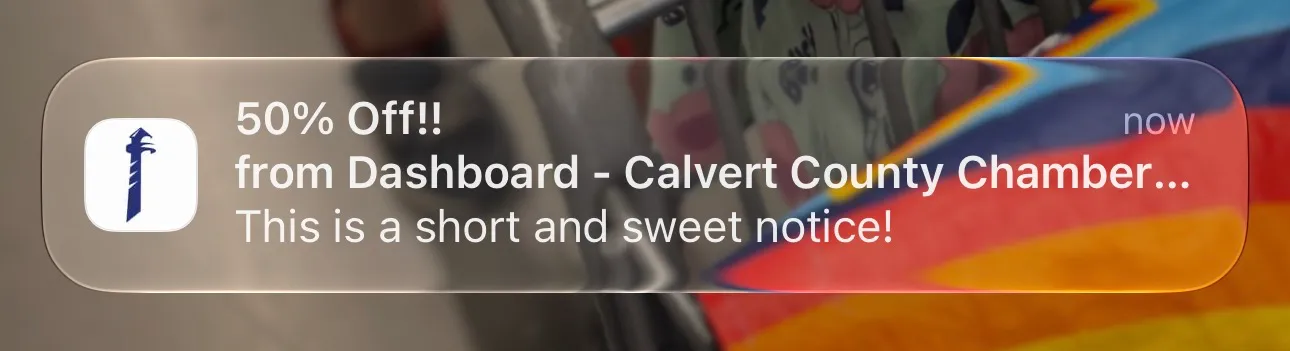
Overview
There is nothing to write or configure per event. The wording, links, and images come from the notification settings already set up in Voxel, and a push is only sent when Voxel creates an in-app notification — so your existing per-event toggles carry over unchanged.
Key Features
- Every Voxel in-app notification can become a push notification (100+ event types on a standard install)
- No OneSignal, Firebase, or third-party accounts; keys generate automatically
- Push Notifications (VT) opt-in widget for members
- Admin broadcasts with role/plan targeting and a separate announcements opt-in
- Status screen with end-to-end test send and a Recent activity log
Setup Instructions
Step 1: Enable the Function
- Navigate to Voxel Toolkit → Functions in your WordPress admin
- Find Push Notifications in the list and toggle it on
Enabling the function also enables the Push Notifications (VT) widget automatically — the widget is the only way members can opt in.
Step 2: Add the Opt-in Widget
- Edit a page your members visit — an account or settings page works well
- Add the Push Notifications (VT) widget
- Adjust the heading, description, and button labels if you like
Members are never prompted without clicking the button. A browser records a refused permission prompt permanently, so an unexpected prompt costs you that person for good.
The widget's Offer Announcements Opt-in control adds a separate tick box ("Also send me occasional announcements") — broadcasts are only ever sent to people who tick it.
Step 3: Check the Status Screen
The function's settings screen is diagnostics, not configuration. It reports whether the server requirements are met, whether the site is on HTTPS, whether the signing keys and notification script are in place, how many notification types are wired up, and how many people and devices have subscribed. Use Send test notification to confirm the whole chain works end to end on your own devices — push fails quietly by nature, so this is the only real proof.
HTTPS is required
Browsers only allow push notifications on secure sites. Without an SSL certificate nobody can subscribe, and the status screen will say so.
iPhone and iPad need a Home Screen icon
Apple only delivers web push to sites the visitor has added to their Home Screen — there is no way around it. Desktop browsers and Android work in a normal tab, so expect fewer iPhone subscribers.
How Push Inherits Voxel's Toggles
A push is only sent when Voxel actually creates an in-app notification. If an event has its in-app destination disabled in Voxel → App Events, no push is sent for it — the in-app toggle is effectively the push toggle. Subject, link, and image all come from that event's Voxel configuration.
The Recent activity log (on Voxel Toolkit → Push) shows the last 25 times a notification could have become a push and what happened: sent, failed, or skipped — with the reason, such as "event fired but Voxel created no in-app notification" or "recipient has no subscribed devices". "I didn't get a notification" has an answer rather than a guess.
Two message events, one message
Voxel has both a throttled and an unthrottled "user received a message" event, and the unthrottled one fires on every message. If in-app notifications are enabled for both, a message after a quiet period creates two notifications — and therefore two pushes. Check which you have enabled in Voxel → App Events.
Broadcasts
One-off announcements are sent from Voxel Toolkit → Push (a separate screen from settings, because sending is an action that cannot be recalled):
- Compose a Title (80 characters), Message (200 characters — devices truncate long notifications), and Opens link (defaults to your home page)
- Choose the audience under Send to: tick boxes for User role, Membership plan, and Listing plan. Ticking several boxes in one group widens the audience; ticking across groups narrows it — a role plus a plan means people who have both. Leave everything unticked to reach everyone who opted in
- Click Check audience — the send button stays disabled until you have, and changing any filter disables it again
- Click Send broadcast
Delivery is queued and processed in the background so large audiences do not time out, with progress shown as it goes. Broadcasts only ever go to members who ticked the announcements box — agreeing to hear about your own activity is not agreeing to hear from the site.
Troubleshooting
The Opt-in Button Does Nothing
- Check the status screen — it fetches the notification script the way a browser would and reports if your server is not serving it. Re-saving Settings → Permalinks often fixes it
- Failures are also written to the browser console
A Member Didn't Get a Push
- Check the Recent activity log on Voxel Toolkit → Push — it records why each notification was sent, failed, or skipped
- Confirm the event's in-app destination is enabled in Voxel → App Events. You're looking for the Send in-app notification toggle — there is no push setting there and never will be: push has no per-event toggle of its own, it automatically follows the in-app destination
- If the log says sent but nothing appeared, the notification was delivered and then suppressed by the device: check the operating system's notification settings for the browser (on Windows, also Focus Assist / Do Not Disturb; on macOS, Notification Center permissions and Focus) and confirm you're in the browser profile that subscribed
Tests and broadcasts are push-only
Test sends and broadcasts deliberately never appear in Voxel's in-app notification bell — only real Voxel events create both an in-app notification and a push. Don't look for them there.
Sharing a Computer
A device belongs to whoever pressed the opt-in button on it. Signing in as another user does not silently move the subscription — only deliberately pressing the button changes ownership.
Requirements
- Voxel Theme (active and configured)
- Voxel Toolkit plugin with Push Notifications enabled
- HTTPS (an active SSL certificate)
- PHP OpenSSL extension (present on virtually all hosts)