

Appearance
Registration forms
A registration form creates a WordPress user. It can collect the account's own details, any VX user field, and anything from the field kit — then decide whether that account can log in yet.
Create one: VX Modules → Forms → Add form → Registration form.
The palette
| Group | Fields |
|---|---|
| Account | Email, Password, Username, First name, Last name, Display name, Website, About you, Account type, Terms |
| Each user fieldset | Every VX field attached to users |
| More fields | The whole field kit, for anything else you want to ask |
| Layout | Heading, Text, HTML |
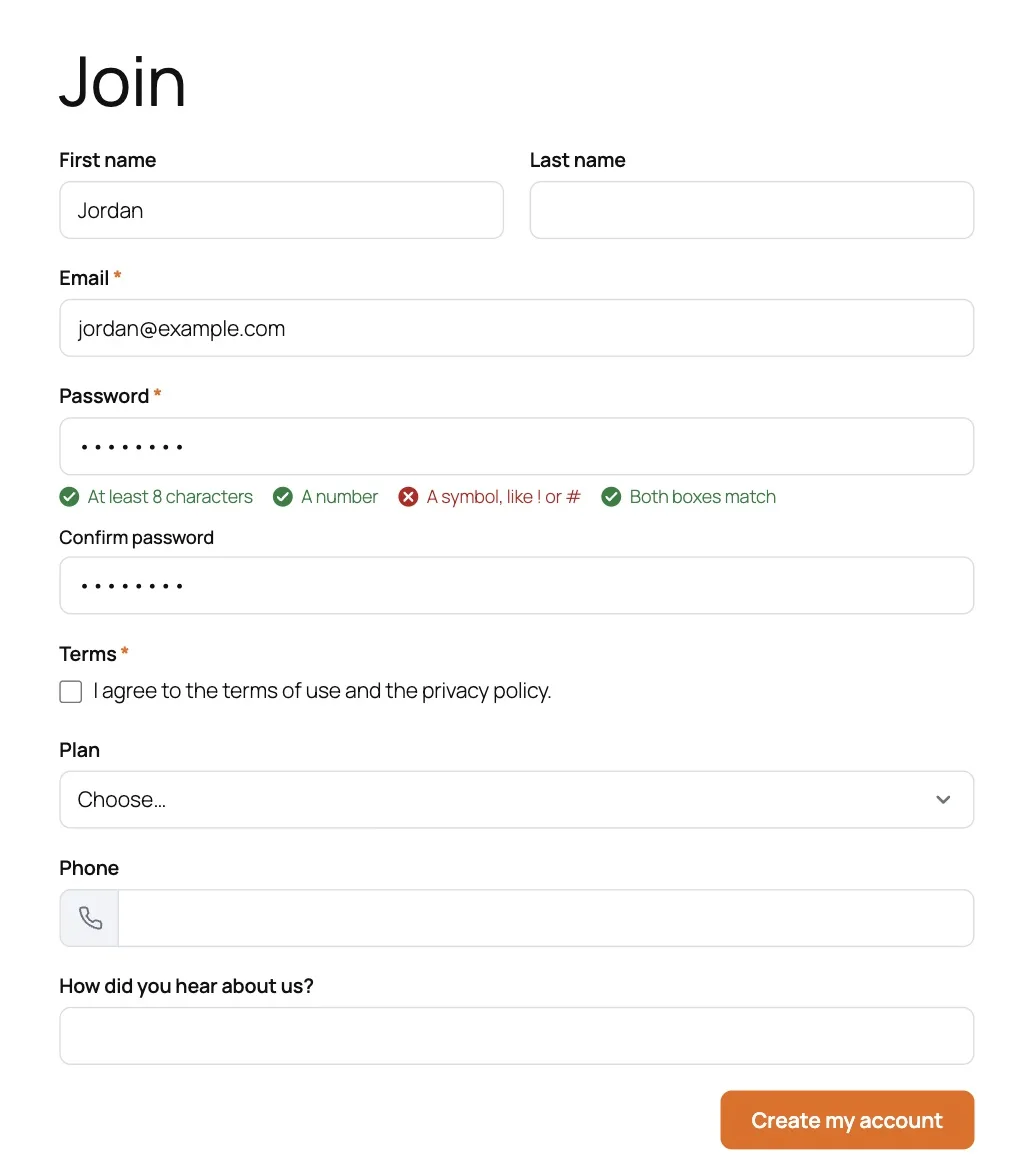
A new registration form starts with First name, Last name, Email, Password, and Terms.
Email and Password are required and stay required. Account type lists the roles a visitor may choose from — with one role or none configured, the field stays hidden. Terms takes its own wording and an optional link.
Accounts
| Setting | What it does |
|---|---|
| Role for new accounts | What everyone gets unless they can choose. Administrator is never offered |
| Roles the visitor can choose from | The list behind the Account type field. Empty means no choice |
| Username | Made from the email · Made from the first and last name · Typed by the visitor |
| Log them in right away | When nothing else stands in the way — no approval, no verification |
| Allow while logged in | Off means a logged-in visitor sees You are already logged in. Turn it on for staff creating accounts |
With a Username field on the form, what the visitor types wins over the Username setting.
Password
| Setting | What it does |
|---|---|
| Shortest allowed | Minimum characters, 4 to 64. Default 8 |
| Must include | Any of: an uppercase letter, a number, a symbol |
| Ask to type it twice | Adds a Confirm password box |
The form lists the rules under the password box and ticks them off as the visitor types — and the server checks the same rules, so a browser that skips the script changes nothing.
By default a password must be at least 8 characters and contain a number.
Approval
| Setting | Options |
|---|---|
| Someone approves new accounts | No, accounts are active right away · Yes, every account · Only accounts with these roles |
| Roles that need approval | Which roles, when approval is by role |
| Message while waiting | Shown to the visitor after signing up |
| Email when approved | Subject and message sent to the new account. Leave the message empty to send nothing |
Until an account is approved it cannot log in — that is enforced at WordPress's own authentication step, so it holds for wp-login.php as well as for your login form. Approve or deny from the Entries screen.
The approval email goes to the person whose account it is. To tell somebody else, add a notification with Send when set to Their account is approved.
Email verification
| Setting | What it does |
|---|---|
| Verify the email address | Sends a link. Until it is opened, the account cannot log in |
| Message after signing up | Shown to the visitor |
| The email | Subject and message. Must contain {verify_link} |
Verification and approval stack: with both on, an account needs the link opened and someone to approve it.
Re-send a verification email from the Entries screen.
Limits
| Setting | What it does |
|---|---|
| Sign-ups allowed | How many in the period. 0 means no limit |
| per | A number and a unit: minutes, hours, days, or months |
| Counted | Per visitor · For the whole form |
| Message when over the limit | What they see |
Per visitor counts by IP. For the whole form caps total sign-ups in the window, which is the right shape for a limited intake.
Confirmations
The Then choice after signing up is Show a message or Go to a page. Which message a visitor actually sees depends on what stands in the way:
| Situation | Message shown |
|---|---|
| Nothing pending | The confirmation message |
| Waiting for approval | Message while waiting |
| Waiting for verification | Message after signing up under Email verification |
| Over the limit | Message when over the limit |
Notifications
Registration forms get three Send when choices — Someone registers, Their account is approved, Their account is denied — so you can tell staff about a sign-up and tell a colleague about a decision, separately from the built-in emails.
The values the person filled in are stored with the entry, so {field:key} in an approval email sent weeks later still says what they typed.
FluentCRM
With FluentCRM active, a registration form's Integrations page can add the new account as a contact — using the account's name and email, right away or once approved or verified.
Managing accounts
The Entries screen is where accounts are approved, denied, re-sent their verification, or deleted. Deleting there deletes the WordPress user.