

Appearance
Admin columns and bulk edit
The Columns module owns the whole column set of a post type's list screen in WordPress: its own columns and your VX fields together, in one order, renamed and sized however you like.
It is on out of the box — the only module that is. A Columns item sits in the VX Modules submenu.
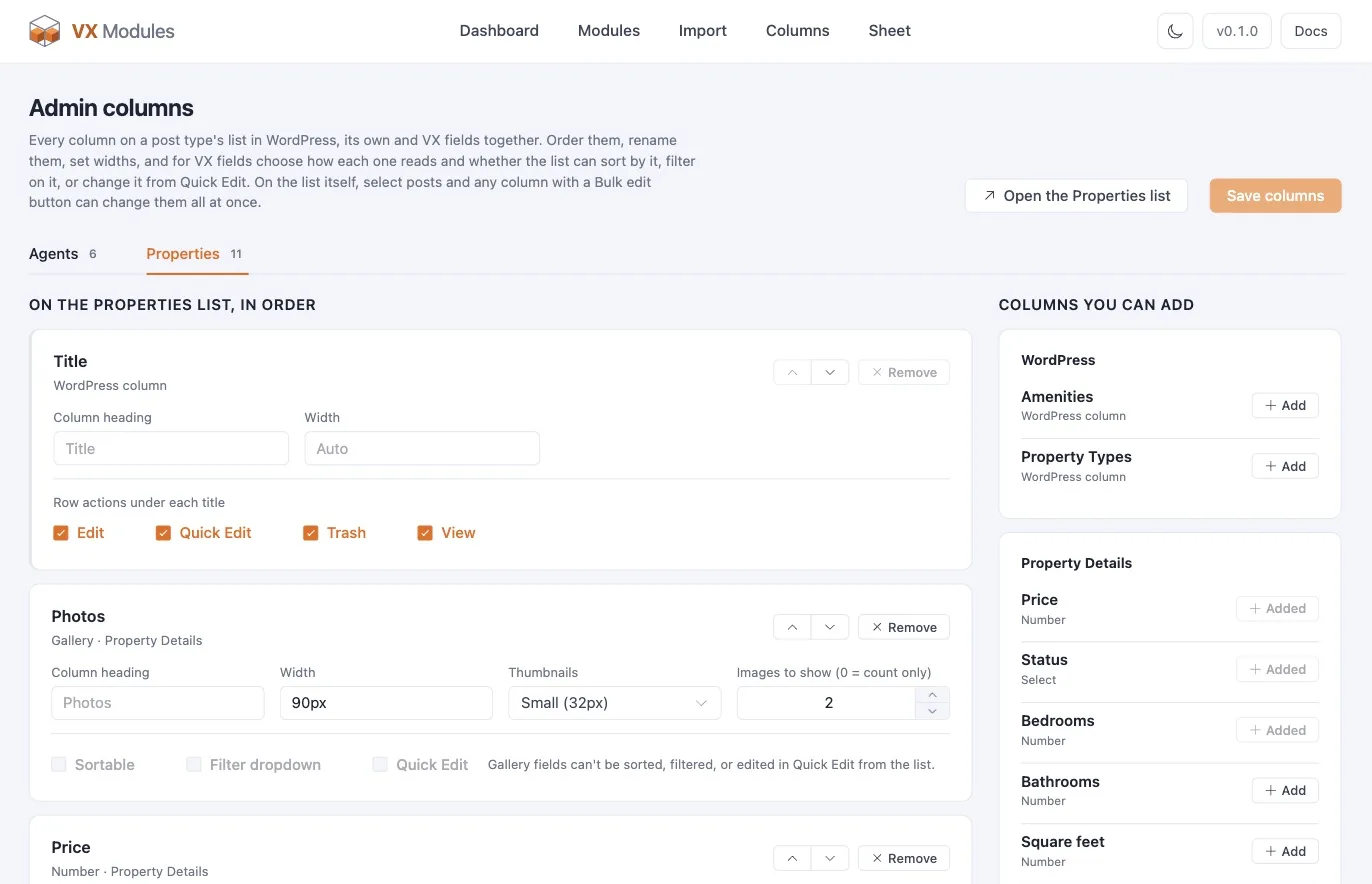
Building the column set
Pick a post type. The screen lists its columns in the order they appear on the list screen. For each one:
| Setting | What it does |
|---|---|
| Order | Move up and down. WordPress's own columns move too |
| Column heading | Rename it. Leave empty for the field's own label |
| Width | Any CSS width, or empty for auto |
| Sortable | Click the heading to sort by this field |
| Filter | A dropdown for this field in the list toolbar |
| Quick Edit | Include this field in WordPress's Quick Edit |
Sorting, filtering, and Quick Edit are only offered where the field type supports them — you cannot sort by a gallery.
Native columns can be hidden. The title column stays.
How each type is drawn
Values are formatted by type rather than dumped as raw meta:
| Field type | On the list |
|---|---|
| Image | A thumbnail |
| Gallery | A thumbnail with a count |
| Select, radio, button group | The choice's label, not its stored value |
| Multiselect, checkboxes | The labels, comma-separated |
| Number, stepper, slider | Formatted as a number |
| Date, date-time, time | Formatted with the site's format |
| Switch | A check or a dash |
| Relation | Links to the related posts |
| Terms | The term names |
| Color | A swatch |
Bulk edit
Select posts on the list screen. Any column whose field can be edited grows a Bulk edit button in the toolbar; clicking it opens a modal for that one column.
The modal previews before it writes. It lists every selected post with what the field is now and what it would become, so you approve the actual result rather than trusting the operation. Only then does it apply.
Values go through VX's runtime on the way in, so field types are coerced and your validation rules apply. A change that would break a rule is refused with the same message you would see anywhere else.
The operations, by field type
| Type | Operations |
|---|---|
| Text, email, URL, phone, color, code, paragraph, rich text | Replace · Find and replace · Add to the start · Add to the end · Clear |
| Number, stepper, slider | Set · Add an amount · Subtract an amount · Raise or lower by a percentage · Clear |
| Switch | Turn on · Turn off · Flip |
| Select, radio, button group | Set · Clear |
| Multiselect, checkboxes, list, terms, related posts, related users | Replace the lot · Set one · Add · Remove · Clear |
| Date, date-time | Set · Move by a number of days · Clear |
| Time | Set · Clear |
| Image, SVG, video, audio | Clear |
| Gallery | Clear |
Percentage changes round to six places and come back as whole numbers where they land on one, so raising 100 by 10% gives 110, not 110.000000.
The same bulk editor is available from the Sheet.
Quick Edit
Fields marked for Quick Edit appear in WordPress's own Quick Edit row, saving without a page load. Only the simple types are offered — text, numbers, choices, switches, dates. Anything that needs a picker belongs in the Sheet or the post editor.
Quick Edit and validation
Quick Edit saves through the classic editor path. A post that would break a validation rule is saved as a draft with a notice rather than published — the same behavior as the classic editor. See Validation.