

Appearance
Forms
The Forms module builds front-end forms out of what VX already knows. Pick a post type and the form starts with every field on it, as the right input, validated by VX on the way in.
Turn it on: VX Modules → Modules → Forms. Two items appear in the submenu: Forms and Entries.
The six kinds of form
You choose the kind when you create a form, and it decides what the builder offers.
| Kind | What it does | Guide |
|---|---|---|
| Post form | Creates or edits a post of a VX post type | Below |
| Standalone form | Contact, inquiry, feedback — submissions kept as entries, no post created | Below |
| Registration form | Signs a visitor up as a WordPress user | Registration forms |
| Login form | Signs a member in on your own page | Login and password reset |
| Password reset form | Both steps of a reset on one page | Login and password reset |
| Product options form | Asks a buyer for details before Add to cart | Product options forms |
Product options forms need the FluentCart or WooCommerce module on as well.
Creating a form
- VX Modules → Forms → Add form.
- Give it a name and pick the kind.
- For a post form, pick the post type. The form starts with every field that post type has.
- Build, set, place.
The builder
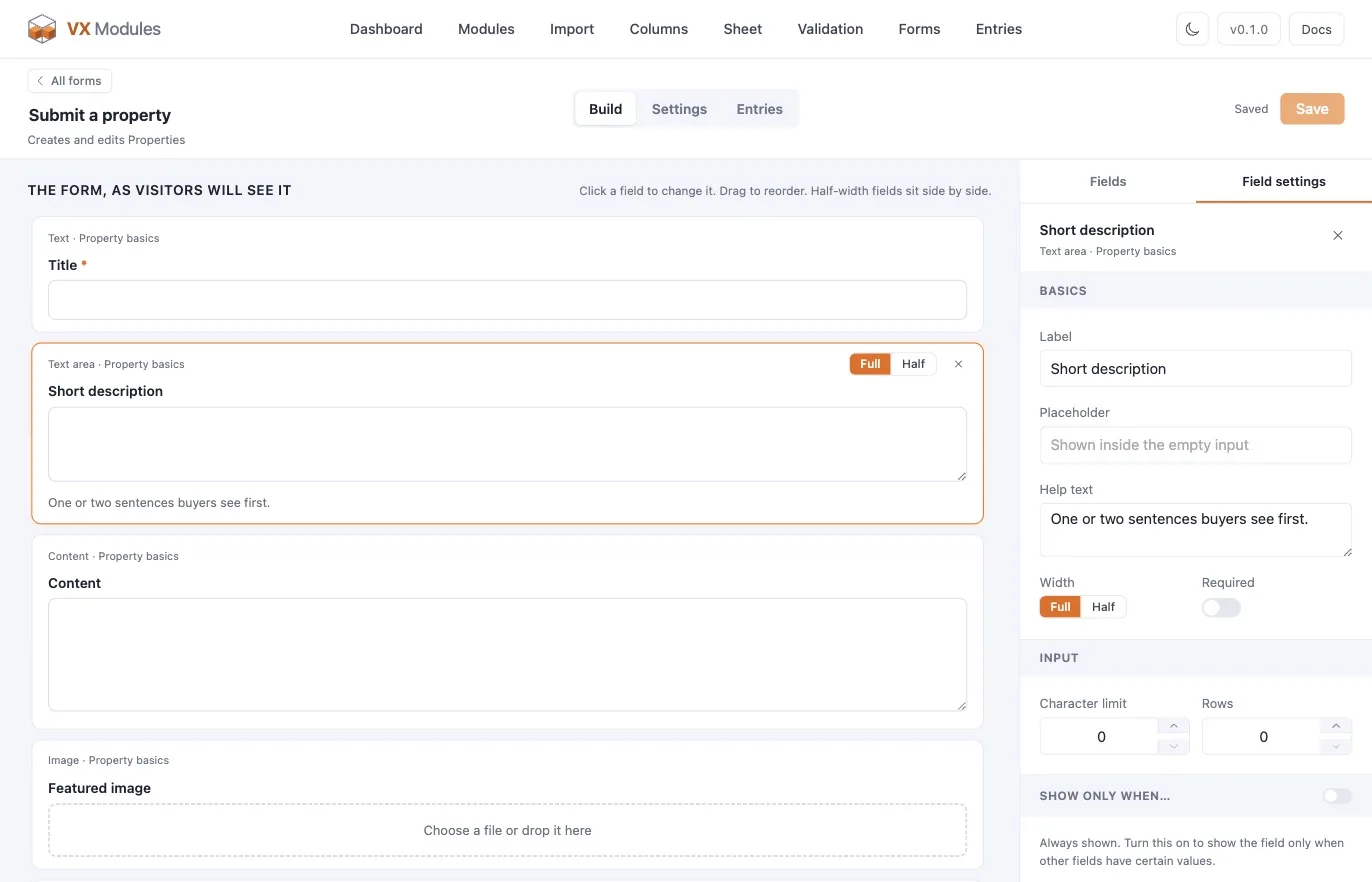
Three tabs across the top, and the form's name is editable in place. The state indicator says Saved or Unsaved changes; nothing is written until you hit Save.
| Tab | What's on it |
|---|---|
| Build | The form as visitors will see it, the field palette, and the selected field's settings |
| Settings | Settings, Notifications, Integrations, Embed, Preview |
| Entries | What has come in through this form |
Build
The center column is the form itself, drawn the way the front end will draw it, with the same stylesheet. Drag to reorder. Click a field to open its settings on the right. The palette on the left is grouped — for a post form: the post type's basics, its terms, each fieldset, and Layout.
Every field has the same core settings plus whatever its type adds. See Fields and their settings.
Settings
A side menu with one page per area. The Settings page is one long page with section anchors; the rest are their own pages.
| Page | What's on it |
|---|---|
| Settings | Access, what a new post becomes, after-submit behavior, edit mode, spam, privacy — see Settings reference |
| Notifications | Any number of emails, each with its own conditions — see Notifications |
| Integrations | FluentCRM — see FluentCRM integration |
| Embed | The shortcode, and where to find the block and the widgets |
| Preview | The form on a bare page, in a frame |
Post forms
A post form creates a post of a VX post type — and, if you let it, edits one.
The palette gives you:
| Group | Fields |
|---|---|
| <Post type> basics | Title, Content, Excerpt, Featured image — whichever the post type supports |
| Terms | Each taxonomy the post type has |
| Each fieldset | Every VX field in it |
| Layout | Heading, Text, HTML |
VX's own required fields stay required and cannot be un-required on the form. Status, date, slug, and author are never offered as fields — they are settings instead.
A taxonomy that a VX taxonomy field already covers is left out of the Terms group, so the same choice is never on the form twice.
Editing an existing post
Set What it does to allow editing and the same form opens prefilled when the address names a post:
/submit-listing/?edit=123The parameter is edit by default and can be renamed. You choose who is allowed to edit — the author only, any logged-in user, chosen roles, or a capability — and what a visitor sees when there is nothing to edit. An edit saves back to the same post and keeps its status.
Standalone forms
A standalone form creates no post. It has its own field kit — text, email, phone, website, number, paragraph, dropdown, radio, checkboxes, date, time, yes/no switch, file upload — and its submissions are kept as entries, readable and exportable on the Entries screen.
A new standalone form starts as a contact form: Name, Email, Message, all required, open to anyone.
Placing a form
Four ways, all equivalent:
| Where | How |
|---|---|
| Anywhere | [vx_form id="your-form-id"] |
| Block editor | The VX Form block |
| Elementor | The VX Form widget — free Elementor is enough |
| Bricks | The VX Form element |
The block, the Elementor widget, and the Bricks element all carry the same style controls. See Styling forms.
Duplicating
Any form can be duplicated from the Forms list. The copy gets a new id and a new name, and anything two forms would fight over is switched off in the copy — the login and reset take-overs in particular.
What happens on submit
- The browser checks what it can and shows errors inline.
- The submission goes over REST to the server.
- Conditional fields are re-evaluated server-side, so a hidden field is neither required nor saved whatever the browser sent.
- Spam checks run: the honeypot, the timing check, Turnstile if it is on.
- Values go through VX's runtime — types coerced, validation rules applied.
- The post is written, or the entry is stored.
- Notifications send. FluentCRM runs, if it is set up.
- The visitor gets the message, the new post, or the page you chose.