

Appearance
Importing
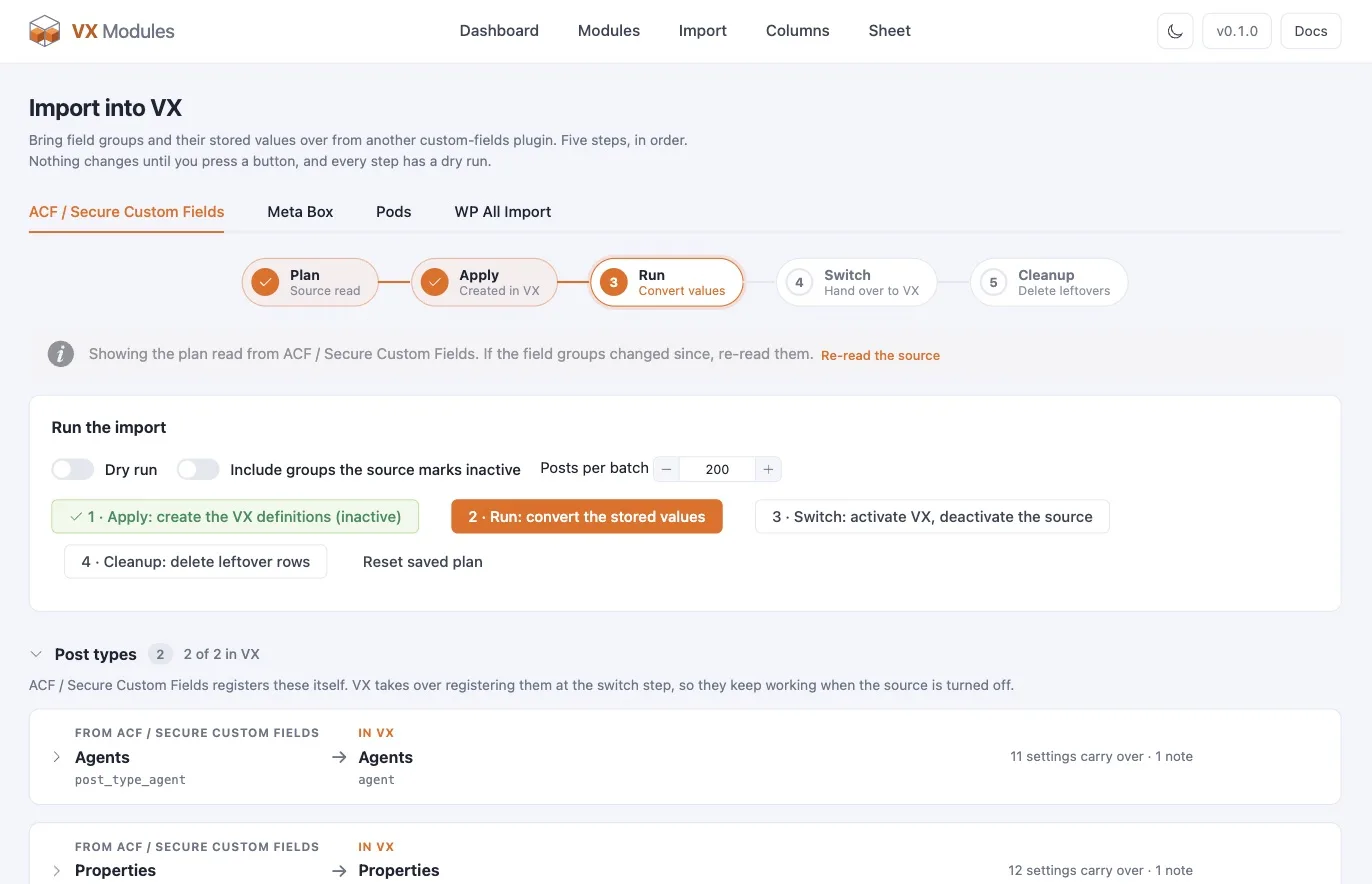
The Import screen is always in the menu — importing is not a module and does not need turning on. It has a tab for each source it reads, plus a tab for WP All Import.
What it reads
| Source | What comes across |
|---|---|
| ACF (and Secure Custom Fields) | Field groups as VX fieldsets, with their locations; the post types and taxonomies ACF registers |
| Meta Box | Meta boxes as VX fieldsets; the post types and taxonomies Meta Box registers |
| Pods | Pods groups as VX fieldsets; the post types and taxonomies Pods registers |
Definitions are read through each plugin's own API while it is active, so field groups defined in PHP, in JSON, and in the database all come across the same way.
The order matters
Once a VX fieldset is active, it owns its meta keys — and rewrites or deletes anything the source plugin writes to them. So values move first and the switch is last. The screen walks you through it in four steps.
1 · Apply — create the VX definitions
Creates the post types, taxonomies, and fieldsets, inactive. Nothing about the live site changes yet. The plan above the buttons shows every mapping decision before you do this: which VX type each field lands on, which fields would be downgraded because this install is VX Free, and any key clashes.
2 · Run — convert the stored values
Reads each post's values in the source's layout and writes them through VX's own runtime, so VX normalization applies — JSON containers, the relations table, term assignments. Batched and resumable: set the batch size, walk away, come back.
Turn on Dry run first. It reports exactly what it would write, and changes nothing.
Source data is never deleted by this step. Both copies exist until you clean up.
3 · Switch — activate VX, retire the source
Activates the VX fieldsets and stands the source's groups down.
ACF groups are deactivated through ACF's own API. Meta Box and Pods have no such switch, so the module records their ids and filters them out of their registries instead. To bring one back, delete its id from the vxm:importers:suppressed option.
4 · Cleanup — delete the leftovers
Optional, and last. Deletes the rows the source left behind that nothing reads any more: ACF's reference rows, flattened repeater rows, Pods index rows.
Take a backup before step 4
Steps 1 to 3 leave the source's data intact, so they are reversible in practice. Cleanup deletes rows. Take a database backup first.
Options while running
| Option | What it does |
|---|---|
| Dry run | Report what would change; write nothing |
| Include groups the source marks inactive | Bring across groups the source plugin has switched off |
| Posts per batch | How many posts each pass handles, 1 to 1000 |
| Reset saved plan | Forget the read plan and progress, and start over |
The plan is saved, so you can leave and come back. If the source's field groups changed since you read them, re-read the source — the screen says when the saved plan was read and warns when saved progress belongs to an older one.
VX Free and Pro
Some VX field types are Pro-only — relation, location, area, table, content section, recurring date. When a mapping lands on one of those and this install is Free, the plan says so and offers a choice per field group: downgrade to the closest Free type, or mark the field blocked and leave it out. The default is downgrade.
From the command line
bash
wp vxm import acf              # show the mapping, change nothing
wp vxm import acf --apply      # step 1
wp vxm import acf --run        # step 2
wp vxm import acf --run --dry-run
wp vxm import acf --switch     # step 3
wp vxm import acf --cleanup    # step 4
Swap acf for metabox or pods.
WP All Import
The WP All Import tab installs and activates the free WP All Import plugin from WordPress.org in one click and opens its wizard.
Once it is there, WP All Import's mapping step grows a VX Framework fields section for every post type with a fieldset. It is built on WP All Import's own add-on API, so the free version imports CSV, XML, and Excel straight into VX fields — images and galleries downloaded by WP All Import, terms created as needed.
This is always on while WP All Import is active; there is no module to switch.
Auto-assign matching columns
The section has an Auto-assign matching columns button that fills in every VX field whose key matches a column in the file. A CSV exported from the Sheet maps itself, because the Sheet exports one column per field key.
Groups and repeaters
Groups export and import as one column per sub-field — address__street, address__city. Repeaters still need their rows set by hand in WP All Import; there is no single-column shape that would round-trip them.