

Appearance
Event Calendar
The Calendar widget displays posts from any Voxel post type that has a recurring date field — events, classes, availability, anything scheduled. This page covers the initial setup; see Views & Display for how the calendar presents what it finds.
Setup
- Add the Calendar widget to your Elementor page.
- In Data Sources, keep Enable Voxel Events on. (You can also add an ICS feed alongside or instead.)
- Open Query Settings and configure both of these — the calendar renders empty without them:
- Post Types — select the Voxel post type(s) to display.
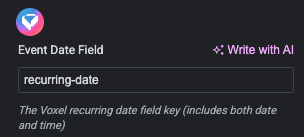
- Event Date Field — the key of your post type's recurring date field. Find it under Edit Post Type → Fields → your date field → copy the key (the default is
recurring-date).
Configure the rest of the widget as you see fit including styling, number of events, etc.
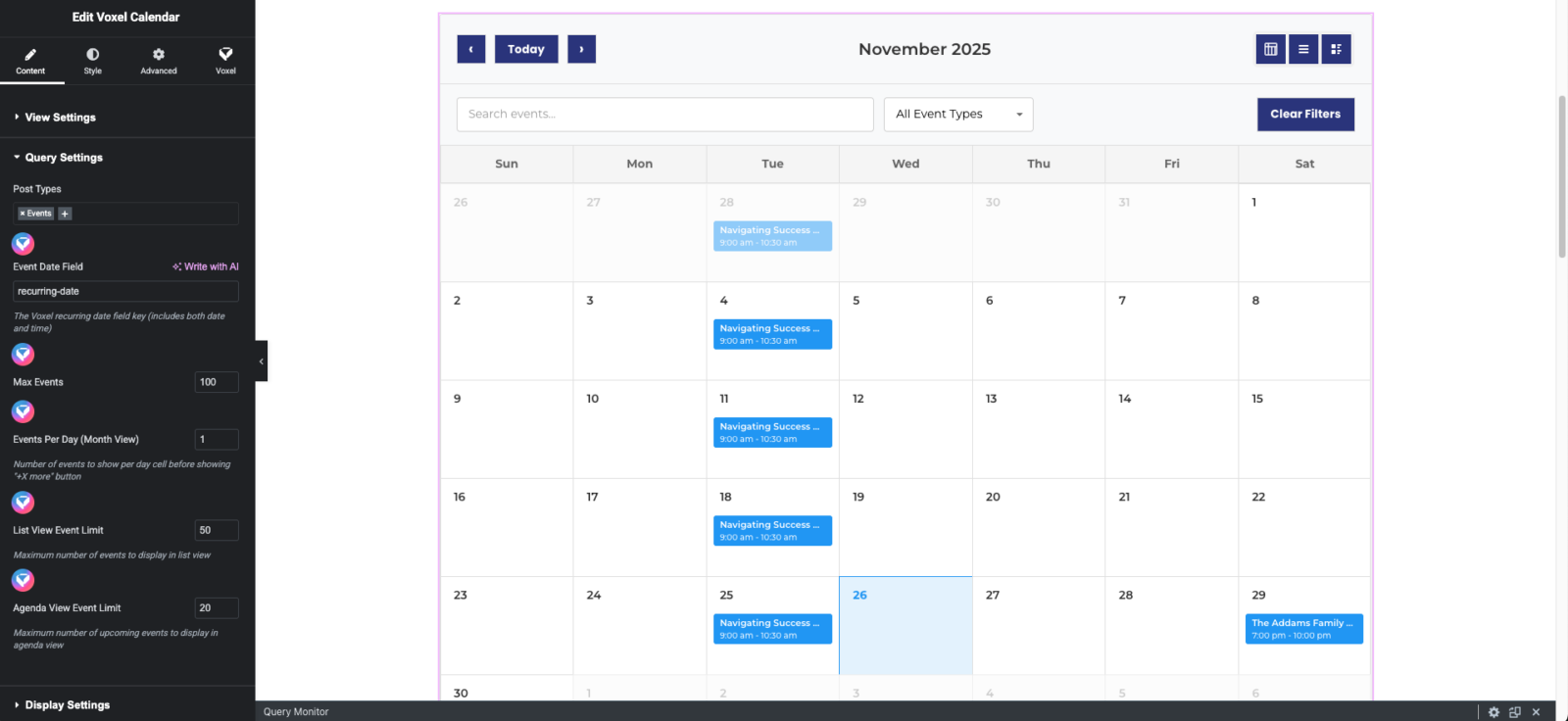
Query Settings reference
| Setting | Default | What it does |
|---|---|---|
| Post Types | — | Which Voxel post types appear on the calendar |
| Event Date Field | recurring-date | Key of the recurring date field the calendar reads |
| Max Events | 100 | Upper bound on events fetched per view |
| Events Per Day (Month View) | 2 | Pills shown per day cell before "+X more" (the cell grows to fit) |
| List View Event Limit | 50 | Maximum events in list view |
| Agenda View Event Limit | 20 | Maximum upcoming events in agenda view |
Recurring events
The calendar understands Voxel's recurring date patterns — an event repeating weekly or monthly appears on every occurrence within the visible range, and multi-day events span their full range with start/middle/end styling.
Calendar is empty?
Nine times out of ten it's one of the two Query Settings above: no post type selected, or an Event Date Field key that doesn't match the post type's actual field. Posts also need a value in that date field to appear.