

Appearance
Levels, Badges & Streaks
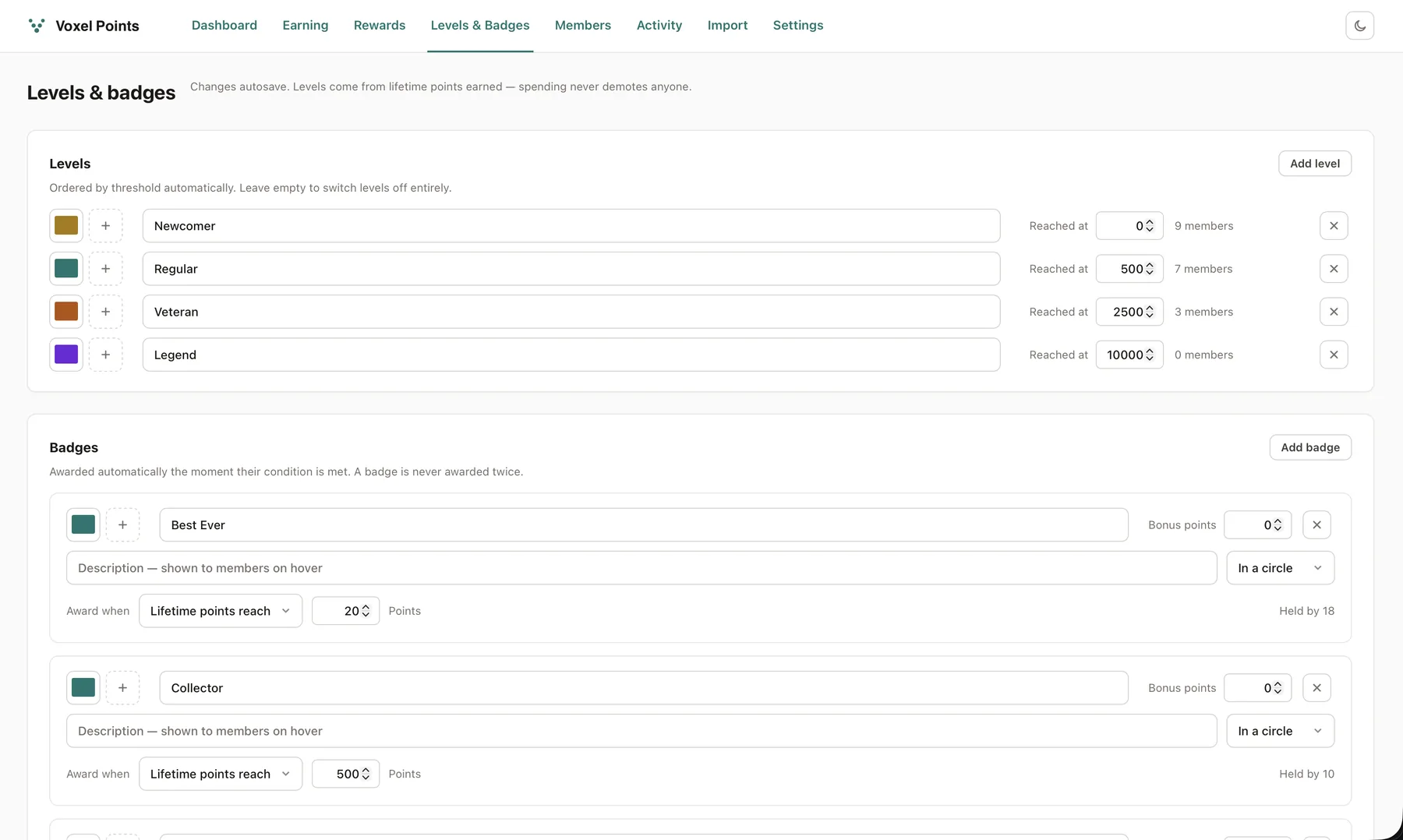
Levels (Voxel Points → Levels & Badges) are tiers members climb by lifetime points earned — deliberately not the current balance, so spending on rewards never demotes anyone. A reversal does reduce it (clawed-back points were never legitimately earned), and a demotion happens silently: only promotions notify.
Badges are one-off achievements a member keeps. Each is awarded automatically the moment its condition is met, and never twice:
| Award when | Example |
|---|---|
| Lifetime points reach N | "Collector — 1,000 points" |
| A rule fires N times | "Reviewer — 10 reviews posted" |
| A level is reached | "Silver Club" |
| A daily streak reaches N | "Regular — 7 day streak" |
| Manually | Anything you award by hand |
A badge can carry bonus points, credited when it is earned.
Awarding a badge by hand
Open Members, click Adjust on the member, and click a badge to give it or take it back. Changes save immediately.
This is the only way to use a badge whose criteria is Award manually — but it works for any badge, so you can also correct one awarded in error.
- Revoking a badge also takes back any bonus points it carried. Award it again later and the bonus is credited again.
- Revoking an automatic badge is temporary: the member still meets its condition, so it returns on their next activity. The drawer marks which badges are automatic.
From WP-CLI:
wp voxel-points badge award [email protected] first_review
wp voxel-points badge revoke 42 first_review
Giving a level or badge an icon
Each level and badge has a colour swatch, a preview tile, and two buttons. With no icon set, the mark is a plain filled circle in your colour — which is a perfectly good look, and the default.
This is the same picker you already use for taxonomy term icons, because it is the same picker — Voxel's. There are two ways to set one:
- Click the tile to open the icon library — the icon packs your site has, typically Line Awesome and Font Awesome. Search by name, click one, done. Nothing to upload and nothing extra to load: the fonts are already on your site.
- Upload SVG, the button underneath, opens your media library filtered to show SVGs only so you cannot pick a photo by accident.
Once an icon is set the tile shows it; the small × on its corner removes it again.
Icons are stored in Voxel's own format, so a value you use on a taxonomy term works on a badge and the other way round.
Already set some icons?
Icons chosen before v0.7.3 keep working exactly as they did, PNGs included. Nothing needs migrating and there is no rush to change them — the new picker only applies to icons you set from now on.
Two options change how artwork is drawn (an uploaded SVG, or an image set in an earlier version). They do not appear for icon-library glyphs, which are single-colour by nature and simply take your colour:
Tint with colour. Paints the artwork in your chosen colour, using the image as a stencil rather than showing its own colours. This is what you want for a plain single-colour silhouette — a star, a trophy, a bolt — because one file then works against any colour you pick, and you can recolour a badge later without re-uploading. Leave it off for artwork that already has its own colours, such as a logo or a photo.
Shape (badges): In a circle puts the artwork inside a filled disc in your colour — the default, and the look most sites want. Standalone drops the disc and shows the artwork on its own, for icons that already have their own shape.
Which combination to use
The quickest good-looking result is an icon-library glyph in a circle — it takes your colour automatically and there is nothing to prepare. If you are uploading your own, a white-on-transparent silhouette + tint on + in a circle gives the same crisp look and lets you change the colour any time. A full-colour logo wants tint off and usually standalone.
If you swap the Voxel theme out
The icon library comes from Voxel. Without it — theme changed, or Elementor disabled — clicking the tile opens the plain media library instead, still filtered to SVGs, and Upload SVG does the same. Icons already set are untouched.
Daily streaks count consecutive days a member visits while signed in (measured on any page load, not just a login — WordPress keeps people signed in for weeks). Enable Daily visit under Earning to award points per day, plus an optional milestone bonus every N days. Day boundaries follow your site's timezone, and a missed day resets the streak while the longest streak is remembered.

Widgets: Member Level (VXP) (with progress bar) and Member Badges (VXP) (earned, with unearned optionally shown grayed out).
The level mark next to member names
A member's level also follows them around the site as a small mark: a circle filled with the level's color, with the level's icon knocked out of it in white. Set the color and icon per level under Levels & Badges; the mark picks them up automatically. It appears in two places, each switchable under Settings → Level mark next to member names:
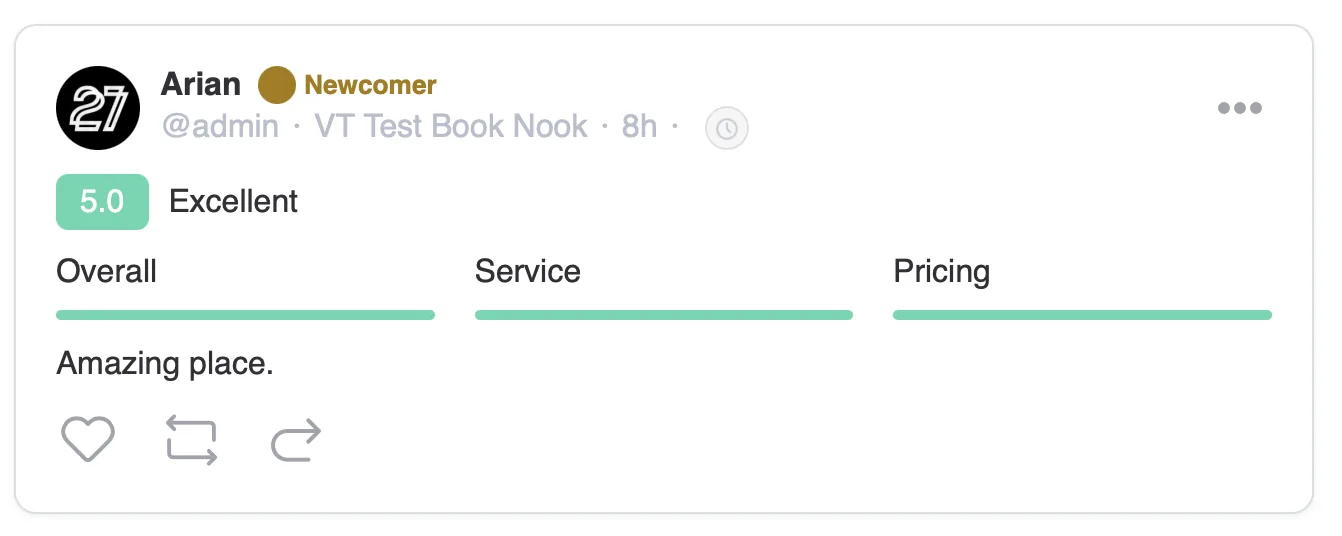
- Timeline posts, comments and reviews — immediately after the display name, where Voxel's own verified check sits, with the level name beside it (the name can be switched off to leave the circle on its own). Reviews are timeline posts in Voxel, so one switch covers both. Quoted posts get it too; a listing publishing to its own wall does not, because a listing has no level.
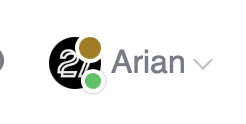
- User bar and direct messages — pinned to the corner of the profile picture in the header menu and the inbox.
In the timeline, it sits immediately after the display name, where Voxel's own verified check goes:
In the user bar it is pinned to the corner of the profile picture. If Voxel Toolkit's online-status indicator is also present, the level mark moves out of its way automatically rather than stacking on top of it:
And the same mark appears on avatars in the inbox:

Why those two routes: Voxel loads every one of its templates through locate_template() with no filter, so a plugin can never override one. The timeline is Vue, and its components read their markup from inert <script type="text/html"> blocks that Vue only parses at mount — and Voxel deliberately fires voxel/timeline/init just before mounting. So the plugin puts the level on publisher.vxp_level through voxel/timeline/status/frontend-config and splices the mark into the name line in that window. If a future Voxel release changes that markup, the anchor simply stops matching and the feed renders exactly as it always did.
The user bar and the direct-messages widget both print get_avatar() output beside the name, and neither exposes a filter of its own, so the mark rides the avatar there — but only while one of those two widgets is rendering. A site-wide avatar filter would put the mark in the WordPress admin bar, order lists, comment threads and this plugin's own leaderboard, and break layouts that size the <img> directly. The direct-messages name itself carries no filter of any kind, which is why the mark sits on the picture there rather than after the name.
Leaderboard privacy
Members can hide themselves from every leaderboard with the Leaderboard Privacy (VXP) widget — they keep earning, keep their history, and keep their own level and badges; they simply stop appearing on public boards. Turn the whole feature off in Settings if you would rather not offer it.